




Still paying $3,000+ for a basic business website? Or fighting with WordPress templates that never quite look right?
Here’s the truth: you can build a custom-coded website in a weekend using AI tools. No developer needed. No monthly template fees. Just you, two AI assistants, and a deployment platform that does the heavy lifting.
By the end of this guide, you’ll have a live website on your own server. Let’s get started.
Why Modern Websites Matter
Your website is your 24/7 salesperson. An outdated site costs you money every day—in lost trust, slow load times, and customers who bounce to competitors.
Modern websites fix three critical problems.
They Load Fast (Which Means More Sales)
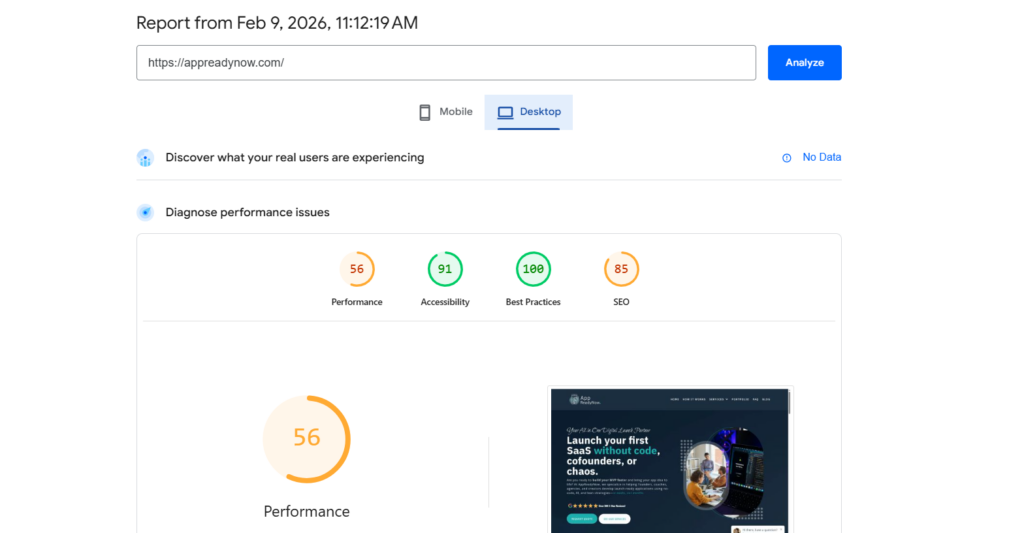
Slow websites kill conversions. A one-second delay drops conversions by 7%.
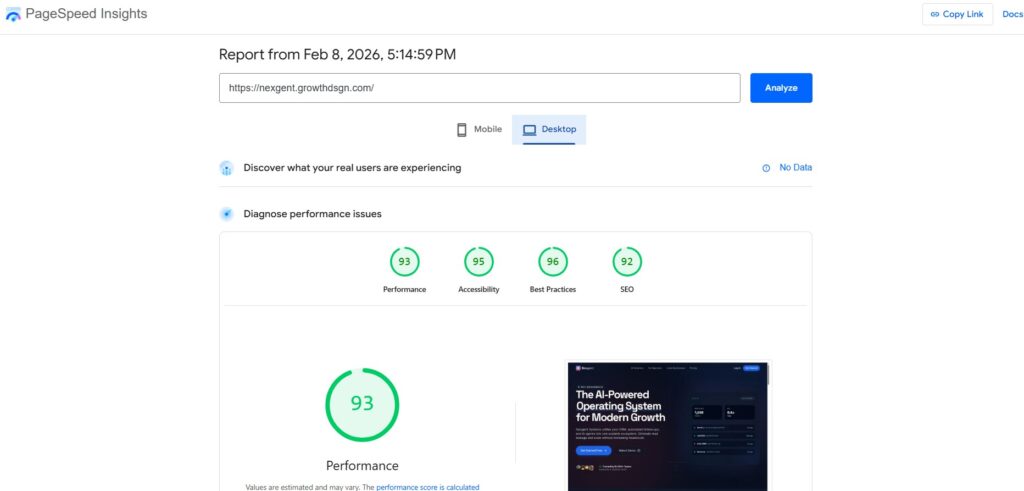
Modern sites use clean code and optimized assets. They load in under 2 seconds instead of 6+. Your visitors don’t wait. They buy.
They Look Professional (Without the Designer Price Tag)
First impressions happen in 0.05 seconds.
A modern website with clean design and mobile-friendly layout tells visitors you’re legitimate. Poor design screams “amateur” even if your service is excellent.
Good news: AI can build you a professional site without the $5,000 design bill.
They Rank Higher on Google
Google rewards fast, mobile-friendly sites with clean code. That’s exactly what modern websites are.
Better rankings = more free traffic. More traffic = more customers. It’s that simple.
Custom Code vs Templates: The Real Difference
Should you use a template or build custom? Here’s what actually matters.
Build Time
Templates: 2-5 hours to set up. Fast, but you’re stuck with their structure.
Custom (traditional): 4-8 weeks with a developer. Expensive and slow.
Custom with AI: 1 weekend. You get unique code without the wait or cost. AI writes it. You refine it. Done.
Personalization: Can You Make It Yours?
Templates: Limited. You can change colors and images. Want a unique layout? You’ll fight the template or pay extra.
Custom with AI: Complete control. Describe what you want. AI builds it. Need changes? Just ask. No limits.
Adding Tools and Integrations
Templates: Easy if a plugin exists. Stuck if it doesn’t.
Custom with AI: Build any integration you need. Payment systems, CRMs, custom forms—AI writes the code. You’re not limited to what plugins exist.
How to Build Your Website with AI (Step-by-Step)
Here’s the exact process. No fluff. Just what works.
Step 1: Sign Up for Google AI Studio (2 minutes)
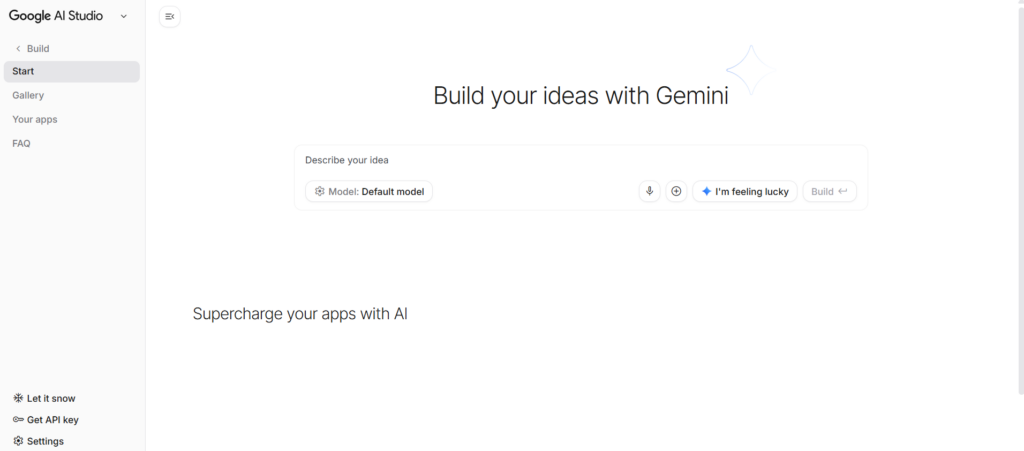
Go to aistudio.google.com and sign in with your Google account. That’s it.
The free tier gives you enough credits to build multiple websites. No payment needed to start.
Step 2: Create Your Website Prompt Using Claude (10 minutes)
Before you build, you need a clear plan. That’s where Claude helps.
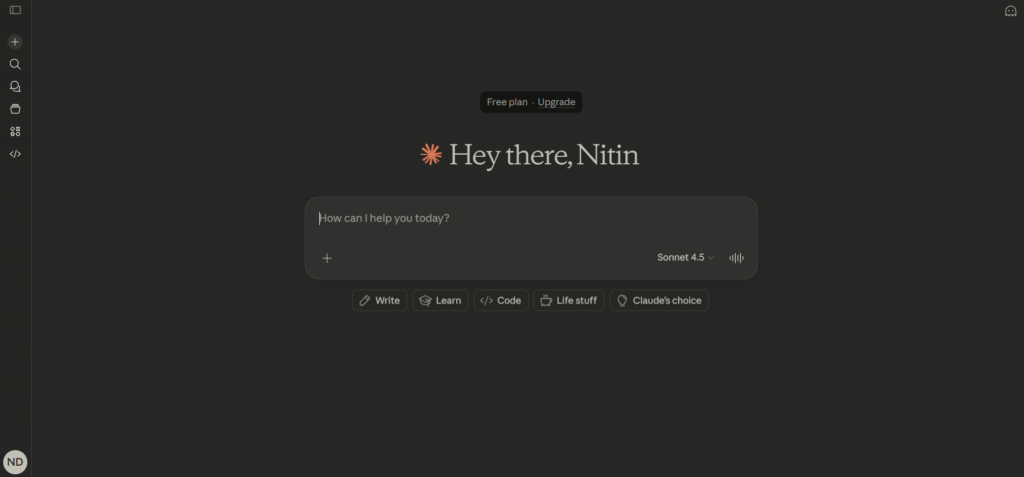
Tell Claude about your business: “I run a boutique coffee roasting business. I need a homepage with our story, a products page showing different coffees, an about page, and a contact form. I want warm, earthy colors—think coffee beans and cream.”
Ask Claude to write a detailed prompt for Gemini. Claude will create instructions covering:
- Page structure and layout
- Design style (colors, fonts, spacing)
- Features you need (forms, navigation, mobile-friendly design)
Copy this prompt. You’ll use it in Google AI Studio next.
Step 3: Generate and Refine Your Code (2-4 hours)
Paste your prompt into Google AI Studio. Gemini will generate your website code in minutes.
To test it:
- Copy the code into a file called
index.html - Open it in your browser
- Take screenshots of what needs fixing
To refine it: Upload screenshots to Google AI Studio and tell Gemini what to change:
- “The header needs more spacing”
- “Make the button color darker”
- “This section should be two columns on desktop”
Repeat until it looks right. This part takes a few hours, but you’re in full control.
Deploy Your Website with Coolify (Make It Live)
Your website works locally. Now let’s put it on the internet where customers can see it.
Step 4: Push Your Code to GitHub (15 minutes)
GitHub stores your code and connects to Coolify for automatic deployment.
Setup:
- Create a free account at github.com
- Click “New repository” and name it (e.g., “my-business-website”)
- Keep it public or private—your choice
Upload your code: Open your terminal in your website folder and run:
git init
git add .
git commit -m "Initial website"
git branch -M main
git remote add origin YOUR_REPOSITORY_URL
git push -u origin main
Your code is now on GitHub. Any changes you make later can be pushed the same way.
Step 5: Connect GitHub to Coolify (10 minutes)
Sign up for Coolify and set up your server (they have tutorials for this).
In Coolify:
- Go to “Sources” → “Add New Source” → Select GitHub
- Authorize Coolify to access your repositories
- Create a new application and select your website repository
- Choose the “main” branch
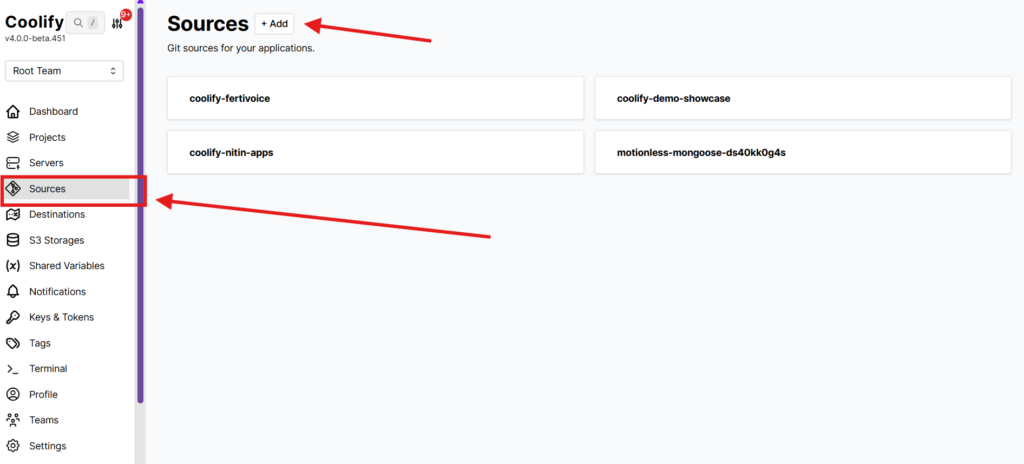
Coolify can now pull your code automatically whenever you make updates.
Step 6: Add Deployment Files to Your Repository (5 minutes)
Coolify needs to know how to serve your website. Add a Dockerfile to your repository:
Create a file called Dockerfile in your project folder:
FROM nginx:alpine
COPY . /usr/share/nginx/html
EXPOSE 80
CMD ["nginx", "-g", "daemon off;"]
This tells Coolify to use nginx (a web server) to host your HTML, CSS, and JavaScript files.
Push this to GitHub:
git add Dockerfile
git commit -m "Add Dockerfile"
git push
Done. Your repository is ready for deployment.
Step 7: Point Your Domain and Deploy (20 minutes)
Almost there. Time to make your website live.
Connect your domain:
- In your domain registrar (Namecheap, Google Domains, etc.), create an A record
- Point it to the IP address Coolify provides
- Wait 5-10 minutes for DNS to update
Deploy:
- In Coolify, enter your domain name in application settings
- Enable SSL (Coolify does this automatically with Let’s Encrypt)
- Click “Deploy”
Coolify pulls your code from GitHub, builds it, and launches your website. In 2-3 minutes, your site is live at your domain.
To update later: Make changes locally, push to GitHub, click deploy in Coolify. That’s it.
You Just Built a Custom Website for Under $100
Let’s recap what you did:
- Created custom code using AI (not a template)
- Deployed it on your own server (you control everything)
- Connected your domain (professional and branded)
- Total time: One weekend
- Total cost: Domain ($15/year) + Server ($5-20/month)
Compare that to hiring a developer ($3,000-10,000) or paying for premium templates ($30-50/month forever).
But Here’s the Reality
You can launch a website fast using this process. That part’s easy.
Making it production-ready? That takes more work. Security hardening, SSL configuration, performance optimization, SEO setup, analytics integration, backup systems—these aren’t hard, but they require time and technical know-how.
That’s where we come in.
If you’re not techy or just want to avoid the hassle, we’ll handle everything. You focus on your business. We build and optimize your site from start to finish.
Want to learn more? Book a free call. We’ll walk you through exactly what we can do for you.